Send a Review Request Automatically When a Job Is Done
Point Housecall Pro, Jobber, Zapier, Make or n8n at your workspace's private trigger URL. Each finished job sends the customer one Google review request by email, or by text from your own Quo or Twilio number, 2 hours after the job by default and outside your quiet hours. A job is never asked twice, and a customer asked in the last 30 days is skipped.
 By Yaro (Yaroslav Mykhailov), founder of ReputeMap · Updated
Reading this for your own business? See where it stands on Google right now. It's free, with no signup.
Live from Google · free · nothing is stored
Full report
- Google rating and review count above
- What to work on first above
- The newest Google reviews, word for word
- Replies to them, drafted in your voice
Free account · no card · opens in about a minute
What happens when a job is marked done?
Your job tool tells ReputeMap, and ReputeMap sends the ask. Every ReputeMap workspace has a private trigger URL, and you can give each location its own. When a job is finished, your field-service app or automation posts the customer to that URL, and ReputeMap sends them one review request, by email or text, that opens the right location’s Google review form. Before anything goes out, it checks four things:
- The delay you set. By default the ask goes out 2 hours after the job, when the work is finished and paid and the customer is home. You can choose right away, 30 minutes, or 1, 2, 4 or 24 hours.
- Quiet hours. An ask that lands inside your quiet hours waits, and goes out when the location’s quiet hours end.
- Opt-outs. A customer who unsubscribed from your emails is never emailed again, and a phone that opted out of your texts is marked Do not contact.
- Duplicates. A job ID is never sent twice. A customer asked by any of your locations or campaigns in the last 30 days is skipped (you can set 1 to 365 days), and one location never sends the same customer a second single request.
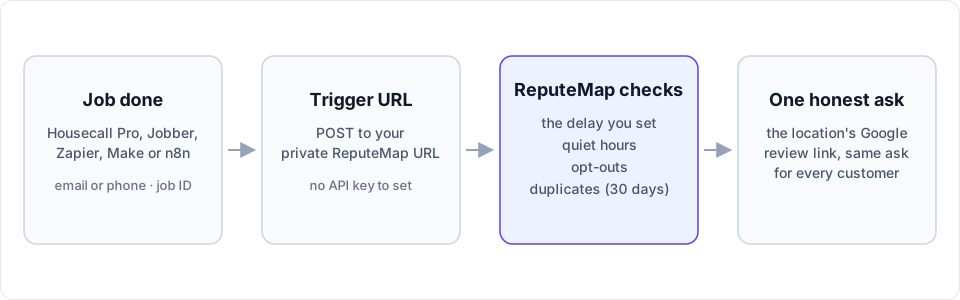
Every customer gets the same request, whatever the job went like. No rating or survey screens anyone out first: that practice, review gating, breaks Google’s review policy and the FTC’s rules. The request itself is short and personal; our review request templates show what works for home-service customers.
What does your tool send?
One POST per finished job, as JSON or as form fields. Field names are forgiving: First Name, first_name and customer_email all work, and the same fields inside a customer object are read too.
| Field | What ReputeMap does with it |
|---|---|
email | Where the review request goes. An event with an email goes by email |
phone | Optional. A job with a phone and no email gets a text once you connect your own Quo or Twilio number in Settings → Text messages (or every job with a phone, if you turn on Text first there). Without it, the event is logged “phone only” and nothing is sent |
first_name and last_name, or name | The greeting in the email or text |
job_id | The duplicate key: a job ID is never sent twice. An invoice, order or appointment number works too |
location | Needed only on the all-locations URL when you have more than one location: the location ID shown in Settings, its name or its address. A location’s own URL always sends for that location |
staff | Credits the ask to the team member, with their name and their own tracked link in the email or text (Growth plan and up) |
Your trigger URL looks like https://api.reputemap.com/api/hooks/jobs/ followed by a long private code. Find it in the app under Settings → Automatic requests: one URL for all your locations, and one for each location. Keep it inside your tools, because anyone who has it can send requests in your name. Create new URL replaces it, and the old one stops working at once.
How do you test it before a customer sees it?
Send a test event in Settings → Automatic requests runs every check on a sample job and shows each step’s result; nothing is sent. To check your tool’s own setup, add a field test set to true: the event goes through the same checks, nothing is queued, and the same job can still be sent for real later. The log keeps the last 50 events, each with what happened and why, in plain words: queued, sent, held for quiet hours, skipped (a job already asked, a customer asked recently, an opt-out) or rejected (no email or phone, “phone only” without Quo or Twilio connected, an unknown location).
Housecall Pro: outgoing webhooks, no Zapier
Housecall Pro can send webhooks itself, but only on its MAX plan, according to its help center article “How to Enable Webhooks” (updated July 16, 2026). Connect that webhook to your trigger URL:
- In Housecall Pro, go to My Apps → All apps and open Webhooks.
- Switch it on, paste the trigger URL of the location the jobs belong to, and click Save.
- Choose the events to send and tick job.completed.
- Finish a test job, then check the event log in ReputeMap.
On Essentials or Essentials+, use Zapier instead, with Housecall Pro’s “New Completed Job” trigger. The full comparison of Housecall Pro’s own review feature and ReputeMap is in Housecall Pro review automation.
Jobber: through Zapier
Jobber connects through its Zapier app, which Jobber lists on its Connect and Grow plans. Zapier’s Jobber app has a Job Closed trigger (both checked November 13, 2026).
- In Zapier, create a Zap with Jobber as the trigger app and Job Closed as the event, and pull in a sample job.
- Add an action: Webhooks by Zapier, event POST. Set the URL to your trigger URL and the payload type to JSON.
- Under Data, map
email,nameandjob_idfrom the Jobber client and job. - Test the step, check the event log in ReputeMap, then publish the Zap.
Webhooks by Zapier needs a paid Zapier plan: Zapier’s help center lists it on Professional, Team and Enterprise, not Free (checked November 13, 2026). How Jobber’s own Reviews feature compares is in Jobber review automation.
ServiceTitan: through Zapier, on The Works
ServiceTitan’s Zapier app needs The Works or a Legacy package and an admin’s registration (Client ID, Client Secret and Tenant ID). ServiceTitan says the app is in open beta and provided “as is” (help center, updated October 16, 2026). Zapier has no “job completed” trigger for ServiceTitan, and the job record carries the customer’s name but not their email, so the Zap needs a search step:
- Trigger: ServiceTitan → Updated Job, with the job status filter set to Completed (or a Filter by Zapier step that continues only on Completed).
- Action: ServiceTitan → Search Customer Contacts with the customer ID from the job, to get the email.
- Action: Webhooks by Zapier → POST to your trigger URL, payload type JSON. Map
email,nameandjob_id, andlocationif you have more than one: your ReputeMap location’s name, taken from the business unit, because a ServiceTitan “location” is the customer’s service address. - Finish a test job, then check the event log in ReputeMap.
On other ServiceTitan packages, export completed jobs to CSV once a week and upload them as a ReputeMap email campaign (Growth and above). If your requests stopped when ServiceTitan ended its Podium integration on September 15, 2026, what to do when a job tool’s integration ends mid-contract covers the Podium contract too.
Zapier, for any other tool
The Jobber steps work for any app with a Zapier trigger that means “the work is done”: job completed, invoice paid, appointment finished. If the trigger fires when an appointment is booked rather than finished, add Zapier’s Delay Until step set to the appointment’s end time. Our Zapier review request guide lists tested triggers for Square, Calendly, QuickBooks and HubSpot.
Make and n8n
Make: after your tool’s trigger module, add HTTP → Make a request. Set the URL to your trigger URL, the method to POST, the body content type to application/JSON and the body input method to JSON string, then build the body from your tool’s email, first_name and job_id. Run the scenario once with a test job.
n8n: after your tool’s trigger node, add an HTTP Request node. Set Method to POST, paste your trigger URL, turn on Send Body, choose Body Content Type JSON and Specify Body Using Fields Below, and add email, name and job_id. Execute the workflow once with a test job.
Trigger URL or the API?
If you already send review requests through the API (POST /api/v1/review-requests with an X-API-Key header), nothing changes: it keeps working. The trigger URL is made for job tools. There is no header to set, and the delay, the duplicate checks, the test button and the event log come with it. It is on any active paid plan or the 14-day trial with a card, the same as the API, and its requests don’t use API credits; a workspace can send up to 1,000 job events a day. CRMs that already call the API are covered on the integrations page.
Why ReputeMap for the Google side of the job
A field-service app knows when the job is done. ReputeMap handles what happens on Google after that: every location’s reviews in one inbox, 1–3★ alerts by email, Telegram or WhatsApp, AI reply drafts you approve, and reports for any dates as PDF or CSV. Each customer gets an email or a text, never both: email when your tool sends an email, a text when it sends only a phone and you have connected your own Quo (formerly OpenPhone) or Twilio number. Your provider handles carrier registration and bills the texts; ReputeMap sells no SMS credits and has no number of its own. Everything ReputeMap does, and the jobs it leaves to other tools, is on what ReputeMap does, and what it doesn’t.
Frequently asked questions
Does ReputeMap work with Housecall Pro and Jobber?
Yes, without a marketplace app. On Housecall Pro's MAX plan you connect its webhook to your ReputeMap trigger URL, and Jobber connects through Zapier's Job Closed trigger and a Webhooks by Zapier step. Either way, ReputeMap sends the customer one Google review request for the right location: by email, or by text when the job has only a phone and you have connected Quo or Twilio.
Which ReputeMap plans include the trigger URL?
Any active paid plan, or the 14-day trial with a card, the same as the API. Requests sent through the trigger URL don't use API credits, and a workspace can send up to 1,000 job events a day.
Will a repeat customer be asked after every job?
No. A job ID is never sent twice, and a customer asked by any of your locations or campaigns in the last 30 days is skipped. You can set that window anywhere from 1 to 365 days.
What if a job is finished late at night?
The ask waits. If it falls inside your quiet hours, ReputeMap holds the email or text and sends it when the location's quiet hours end, in that location's own time zone.
Do I need Zapier?
Only for tools that reach ReputeMap through it, such as Jobber. Housecall Pro on its MAX plan, Make and n8n post to the trigger URL directly, and so can any tool that sends an HTTP request. Webhooks by Zapier needs a paid Zapier plan.
Is it allowed to ask every customer automatically?
Yes. Google's policy and the FTC's rules are about who gets asked and how, not about automation: every customer gets the same request, nothing is offered for a review, and no rating or survey screens anyone out first. That is how the trigger URL works.
About the author
Founder, ReputeMap
I build and run ReputeMap. Before it, I spent 12+ years as a senior and lead software engineer on big-data systems and backend services.
Ready to manage Google reviews the smart way?
Google Review Management for Multi-Location Businesses and Agencies. Start a 14-day free trial on any plan (card required). Setup takes about 3 minutes.
Start free trial